
Using the Item Finder
What is the Item Finder?
The Item Finder is a quick way of finding out if you can access the full-text of an item as a member of the University of Reading.
How do I use the Item Finder?
When you search most of our databases you will see a blue button next to each reference in your search results:

Click on this 'Search for item at Reading' button to find out if we have access to the full-text online.
If we have access, you will be taken directly to the source. You may need to login with your University username and password to access the item, especially if you are off-campus.
For some items you may see the full Item Finder screen which details information about available access routes, any applicable access instructions and terms of use. You will need to click on ‘Read full-text article’ to gain access.
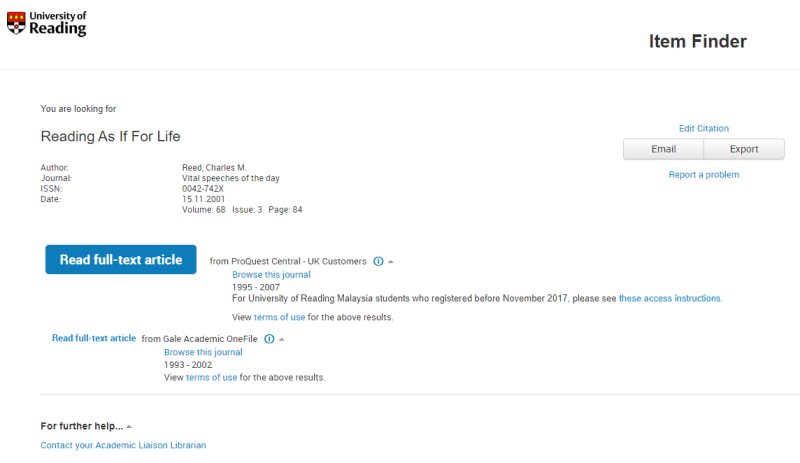
If there is a problem with a link to the full-text you can also:
- report the problem to the E-resources Team for investigation
- explore other sources to access the item
- contact your Academic Liaison Librarian for help
If you wish to get to the full Item Finder display click on 'View Item Finder'.
What if it isn't available online?
If the item is not available online you will see the full Item Finder screen, similar to the one shown below.
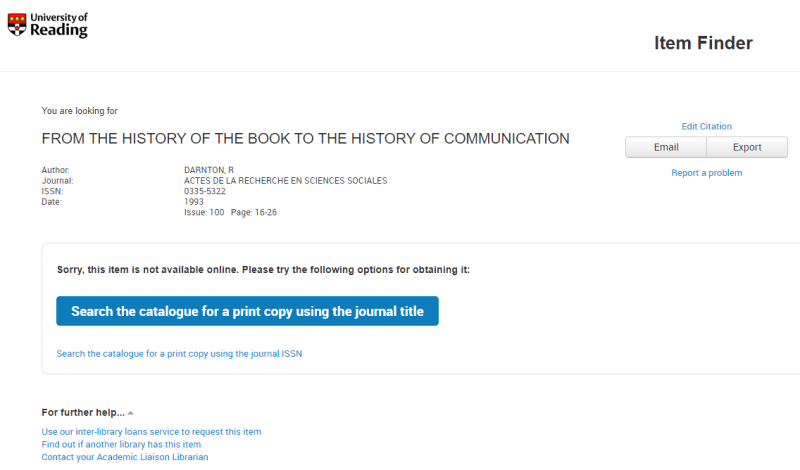
It gives you the option to find out if we have the item in print by clicking on one of the catalogue search links. These links will do an automatic search of the Enterprise catalogue.
If the catalogue search shows that we don't have the item in print, the Item Finder gives you other options for getting hold of it:
- from another library via our inter-library loans service
- finding out if another library has the item so that you can visit them to consult it
- contacting your Academic Liaison Librarian for advice
For more information see Libraries beyond UoR.
Other options available from the Sidebar & Item Finder
On the full Item finder screen there are some additional options:
- Email - allows you to email the citation to yourself
- Export - gives you the option to Export the details in a variety of formats including to EndNote (both Desktop and Online versions)
- Report a problem - if you have an issue with accessing an item, use this form to report the problem to our E-resources Team for investigation